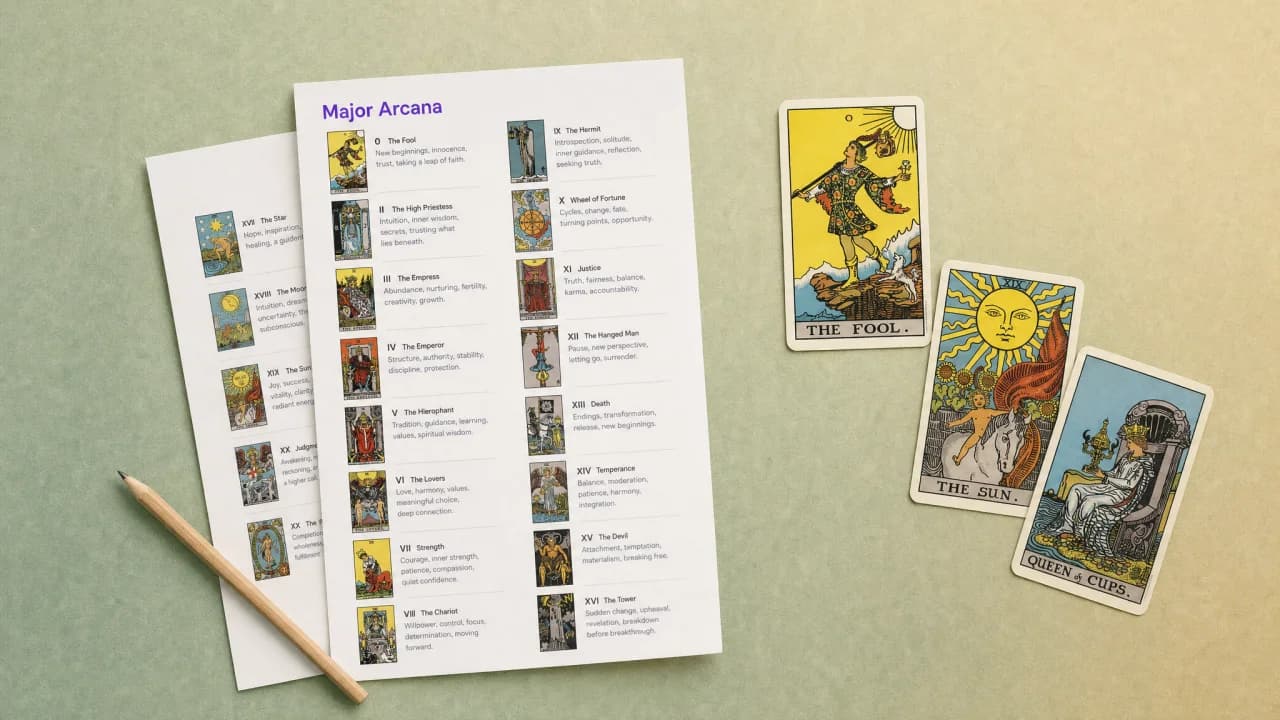


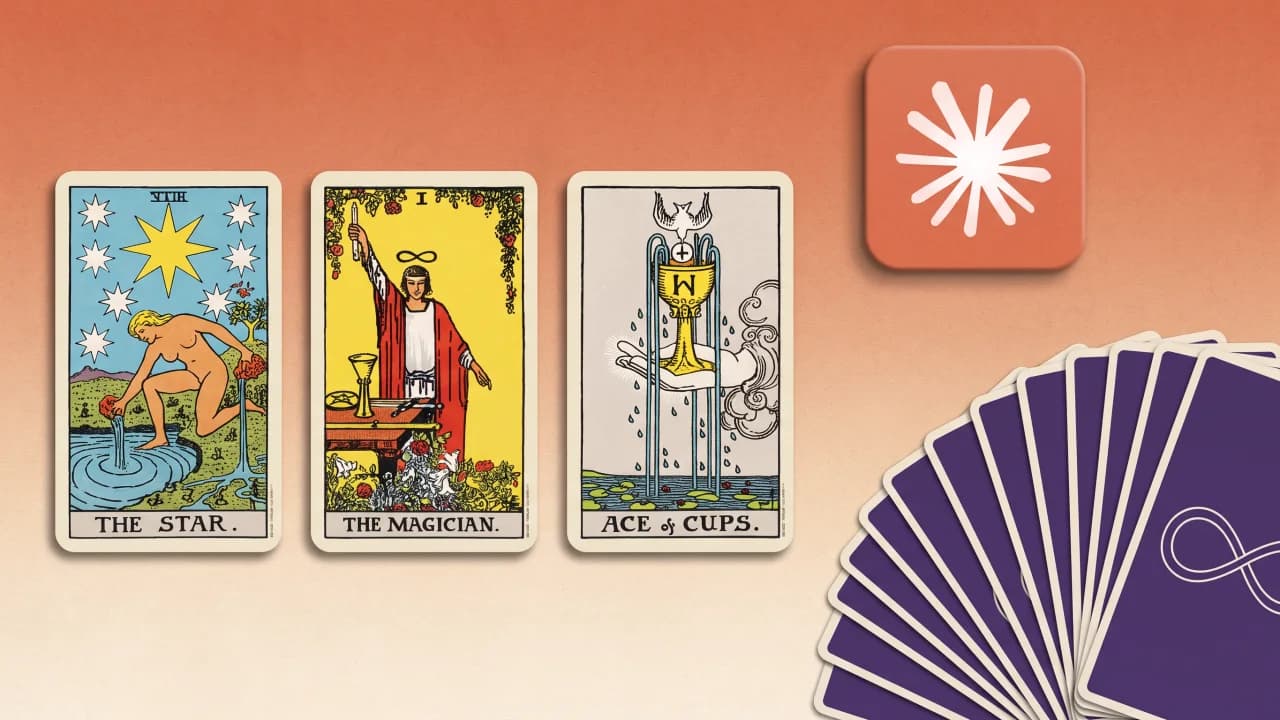
Ask Claude for a tarot reading and it will give you one, but Claude has no deck. It names cards from memory, so nothing is shuffled and nothing is drawn. Tarotap is a tarot connector for Claude that changes that: it shuffles a full deck, lays it face down in the conversation, lets you pick the cards with your own hand, and then Claude reads the cards you actually drew.
This page is the documentation for the connector. It covers what it does, how to add it, how a first Claude tarot reading goes, example prompts, what data it sends, how to fix common problems, and how to remove it.
What the Tarotap connector for Claude does
A connector is an add-on that gives Claude access to an outside service. Tarotap's connector is a remote MCP server, which means it runs on Tarotap's website and talks to Claude through the Model Context Protocol (MCP), the open standard Claude uses for connectors. It is also an MCP App: besides answering Claude, it can show an interactive panel inside the chat. For Tarotap, that panel is a card table.
When you ask for a reading, the connector:
- Shuffles a full 78-card Rider-Waite-Smith deck.
- Fans the deck out face down inside the conversation.
- Lets you browse the fan and tap the cards you want. Each card flips over in its place in the spread, upright or reversed.
- Puts the list of cards you drew into Claude's reply box, so you can send it and get the reading.
The connector only deals the cards. The interpretation is Claude's. When the deck is dealt, Claude is only told that the cards are face down and how many you will draw. It learns which cards you picked from the message you send at the end.
Tarot works best as a way to reflect on a question, not as a forecast. Don't use a reading in place of medical, legal or financial advice.
Who it's for and what you need
The connector is for anyone who uses Claude and wants a tarot reading with a real draw: a quick card of the day, a three-card past, present and future, or a full Celtic Cross. You don't need to know tarot. Claude can suggest a spread and explain every card.
What you need:
- A Claude account. The connector was tested on Claude on the web, at claude.ai.
- Nothing from Tarotap. There is no Tarotap account, no sign-in and no payment. The connector is free.
- On the Free plan, a free custom connector slot if you add Tarotap by URL (see below). Claude's Free plan allows one custom connector.
- On a Team or Enterprise plan, an organization Owner may need to add the connector first.
How to add Tarotap to Claude
There are two ways to add the connector. Try the directory first. If Tarotap isn't listed there yet, add it by its URL.
From the Connectors Directory
- In Claude, go to Customize, then Connectors.
- Select Discover and type Tarotap in Search connectors.
- Open the Tarotap listing and select Connect to Claude.
Tarotap has no sign-in, so it connects as soon as you select the button. You'll see it under Your connectors with the status Connected.
By URL, as a custom connector
If the search doesn't find Tarotap, add it with this server URL:
https://tarotap.com/api/mcp/claude
On a Free, Pro or Max plan:
- Go to Customize, then Connectors.
- Select Add custom connector.
- If the dialog asks for a name, enter Tarotap. Paste the URL above as the server URL.
- If the dialog asks how people sign in, choose No sign-in. Leave any OAuth and advanced settings empty.
- Select Add.
- If Tarotap's page then says you're not connected yet, select Connect.
Anthropic notes that a connector added by URL links Claude to a service it hasn't verified. That applies to every connector added this way, not only Tarotap. For the full details of this dialog, see Anthropic's guide to adding a connector that isn't in the directory.
On a Team or Enterprise plan
Members usually can't add a custom connector themselves. An Owner adds it for the organization under Organization settings, then Connectors, by selecting Add, then Custom, and entering the URL above. After that, Tarotap appears under Customize, then Connectors, with a Custom label, and each member can connect it.
Your first Claude tarot reading, step by step
- Turn the connector on for the chat. In a new chat, select + in the message box, then Connectors, and make sure the switch next to Tarotap is on.
- Ask your question. Say what the reading is about and, if you like, which spread to use. Naming Tarotap helps Claude pick the right connector. If you don't, Claude may find it among your connectors and show a Use button. Select it.
- Allow the tool. Claude asks permission before it uses each Tarotap tool. Choose Allow once, or Always allow if you don't want to be asked again for that tool.
- Draw your cards. The deck appears face down as a fan. Drag across it to browse, and tap a card to draw it. A counter under the fan shows your progress.
- Watch them turn over. Each card flips face up in its position. Reversed cards (cards that come up upside down, which many readers interpret differently) carry a label.
- Send your cards. After the last card, Claude places a short message listing your cards in the reply box, with a caution notice above it. That notice is Claude's standard treatment of any text a connector suggests. Check that the message lists your cards, then press send.
- Read and ask more. Claude interprets the spread against your question. You can then ask about a single card, how two cards relate, or what to do next.
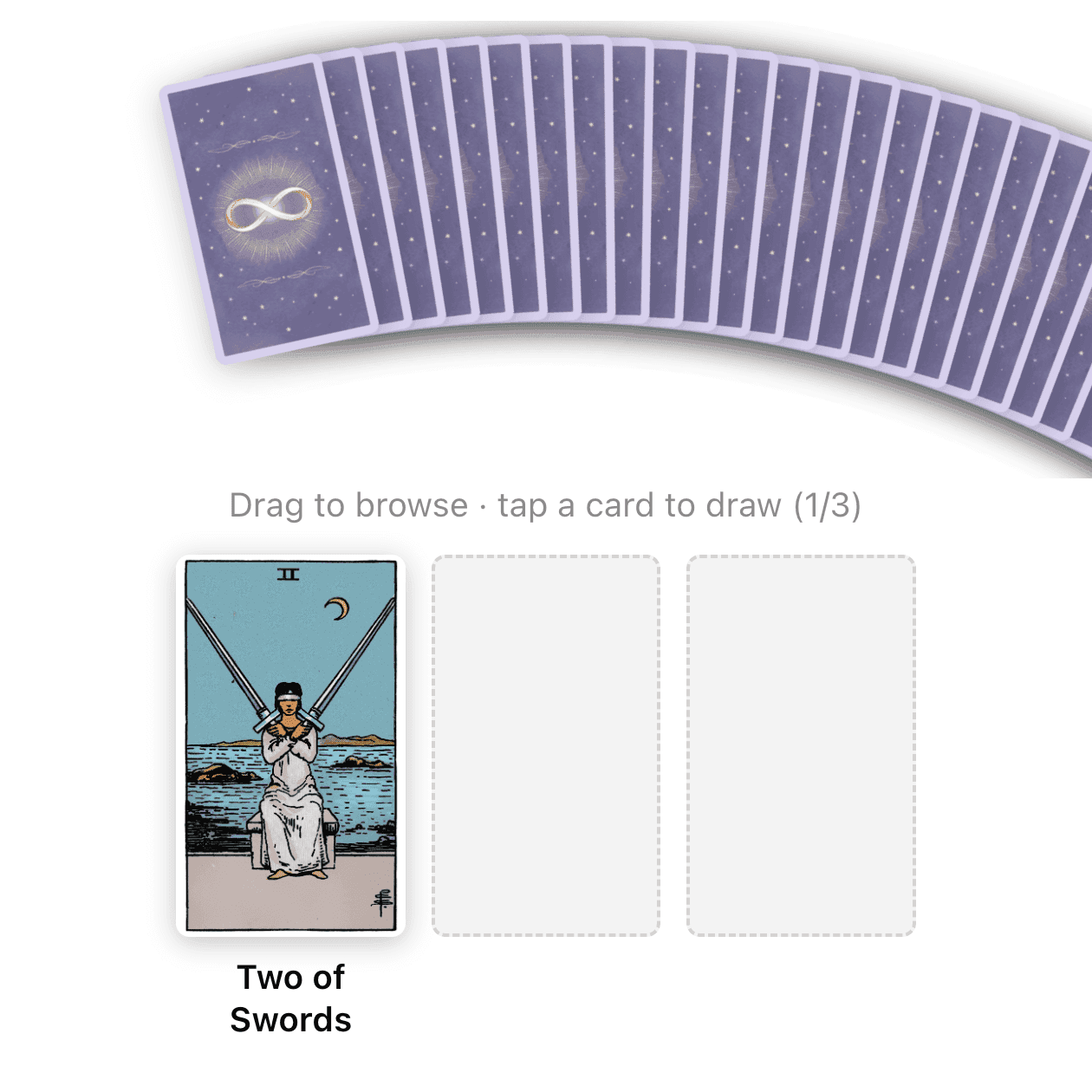
Step 6 is the one people miss. Claude doesn't start the reading on its own. Nothing happens until you send the message.
If you close the chat and open it again later in the same browser, the cards you drew are still on the table.
The two tools, in plain terms
A tool is an action a connector lets Claude take. Tarotap has two, and neither changes anything in your account or anywhere else. Both are read-only.
List Tarot Spreads returns the spreads you can choose from. For each one it gives Claude an id, the name, a one-line description, the number of cards and the name of every position. Claude uses it when you ask what spreads exist, or when it wants to suggest one.
Draw Tarot Cards shuffles the deck and opens the card table. It takes either a spread or a number of cards from 1 to 10. If you name neither, you get three cards.
Spreads and free-form draws
A spread is a fixed layout where each card position has a meaning, such as "past" or "obstacle". Tarotap has 14 built-in spreads. They range from the three-card Time Flow (past, present, future) to the ten-card Celtic Cross, with others such as the Development spread and the Wealth Tree in between. Ask Claude to list them, or browse every tarot spread on the Tarotap site before you choose.
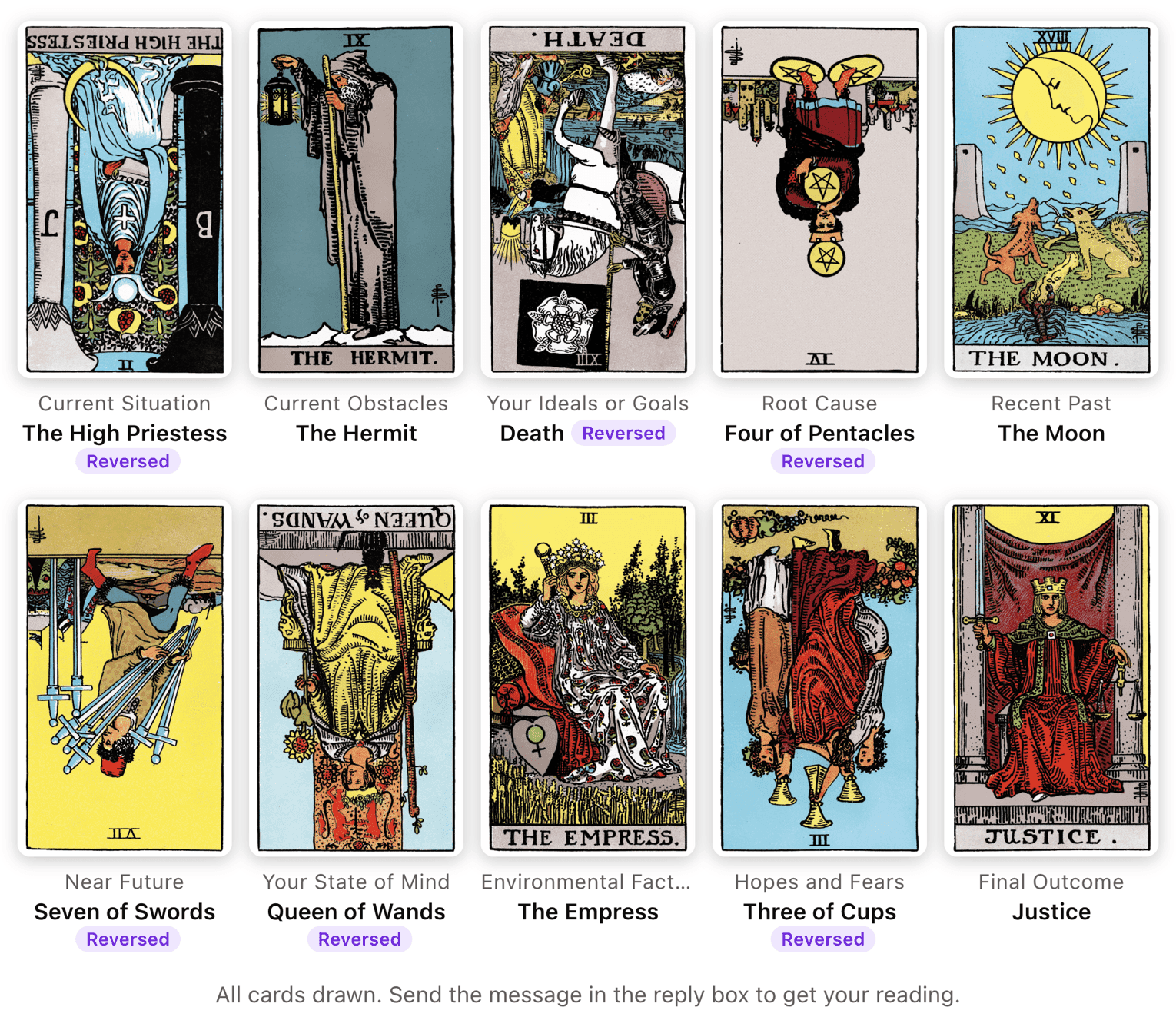
If no spread fits, ask for a free-form draw of any number of cards from 1 to 10. The cards then have no fixed positions, and Claude reads them as a group. A single card makes a quick card of the day.
Example prompts
Each of these works with the connector as it is. Copy one into Claude and change the topic to your own.
See what's available:
Which tarot spreads can Tarotap draw? Show me their positions.
A three-card reading with a named spread:
Do a Time Flow tarot reading with Tarotap about my career this year.
A full reading:
Use Tarotap to draw a Celtic Cross about my relationship.
A themed spread:
Use the Wealth Tree spread from Tarotap to look at my finances for the rest of the year.
A single card:
Draw my tarot card of the day with Tarotap.
Let Claude choose the spread:
I'm deciding whether to move to a new city. Pick a Tarotap spread that fits and draw it for me.
A free-form draw:
Draw five cards with Tarotap about starting my own business, and read them as one story.
Getting a better reading
- Give the question a time frame. "My finances for the rest of the year" gives Claude more to work with than "money".
- Ask for the spread list when you're unsure. Claude can compare the options and suggest one.
- Take your time with the fan. You choose the cards, so hold your question in mind while you browse.
- Keep asking after the reading. The cards stay in the conversation, so follow-up questions build on the same draw.
Readings in other languages
Write to Claude in your own language and the card table follows. Claude passes your language to the connector, and the spread names, position names, card names, the hints on the table and the message in the reply box all switch to it. A Time Flow reading asked for in Japanese, for example, shows 過去, 現在 and 未来 under the cards. If no language is given, the table is in English.
If the table comes up in the wrong language, tell Claude which language you want and ask it to draw again.
What Tarotap receives, and what it doesn't
Each time Claude uses the connector, Tarotap receives three things: the spread, the number of cards and the language. That is all the tools take.
- Your question and the conversation stay in Claude. Tarotap never receives them.
- There is no account, so nothing ties a draw to you.
- Tarotap doesn't store the draw. The cards you picked are saved in your own browser's local storage, which is how the table can show them again when you reopen the chat.
- The card images load from tarotap.com.
The full policy is in the Tarotap privacy policy.
Troubleshooting
Tarotap doesn't show up when I search the directory. Add it by URL as a custom connector, as described in the setup section above.
I can't add a custom connector. On the Free plan you can add only one custom connector, so you may need to remove another one first. On a Team or Enterprise plan, ask an Owner to add Tarotap for the organization.
Claude described cards without showing the table. It answered from memory instead of using the connector. Check that Tarotap is switched on for this chat (+, then Connectors), then ask Claude to draw the cards with Tarotap. If Claude shows a Use button, select it.
Claude never asks to use the tools, or says it can't. You may have blocked them earlier. Go to Customize, then Connectors, select Tarotap, and under Tool permissions set both tools to Needs approval or Always allow.
The card table doesn't appear. Make sure the connector is on for the chat and reload the page. If it still doesn't appear, go to Customize, then Connectors, select Tarotap, choose Disconnect, then connect it again.
The table is there, but the cards are blank. The card images come from tarotap.com. A content blocker, browser extension or strict network filter can stop them. Allow tarotap.com and reload.
I drew every card and nothing happened. Look at the reply box. Your cards are waiting there as a message. Press send.
There's a warning above the message in the reply box. Claude shows this notice on any text a connector suggests. Read the message, check that it lists the cards you drew, and send it.
The table is in the wrong language. Tell Claude which language you want and ask for a new draw.
My cards are gone when I come back. Drawn cards are saved in the browser you used. Another browser or device, a private window, or clearing your browser's site data will not show them. The reading Claude already wrote stays in the conversation either way.
I want different cards. Ask for a new draw. Each draw is a fresh shuffle of the full deck.
I use the Claude desktop or mobile app. The connector was tested on Claude on the web. If something doesn't work in another Claude app, try the same chat at claude.ai and let us know through the support page below.
Turn it off, disconnect or remove it
- For one chat: select + in the message box, then Connectors, and switch Tarotap off. It stays connected for other chats.
- Disconnect: go to Customize, then Connectors, select Tarotap under Your connectors and choose Disconnect. It stays in your list, and you can connect it again later.
- Remove: on the same page, open the three-dot menu and choose Remove. On Team and Enterprise plans, an Owner removes it for the organization under Organization settings, then Connectors.
Since Tarotap keeps no account and no draws, there is nothing to delete on Tarotap's side. Drawn cards saved in your browser are removed when you clear that browser's site data.
More tarot on Tarotap
The connector gives Claude a deck. If you'd like readings from dedicated tarot readers, each with their own voice, the Tarotap website is where they live.
Using ChatGPT as well? The same deck is available there, and the ChatGPT guide explains how to use it.
Support
For questions, bugs or security concerns about the connector, use the Tarotap contact page. Say that it's about the Claude connector, and include what you asked Claude, what you expected and what you saw. A screenshot helps.